VS Code 終端機配色

VS Code 支援 macOS、Linux、Windows。站內 2037 套配色皆可一鍵產生 VS Code 原生設定:開啟任一套配色,匯出面板會自動切換到 VS Code 格式
- 支援平台
- macOS、Linux、Windows
熱門 VS Code 終端機配色
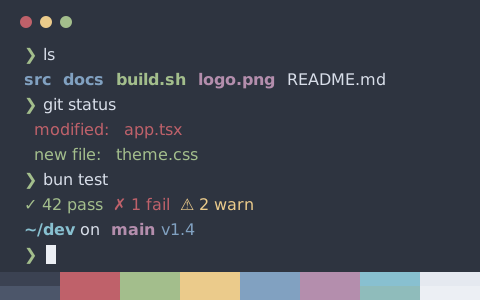
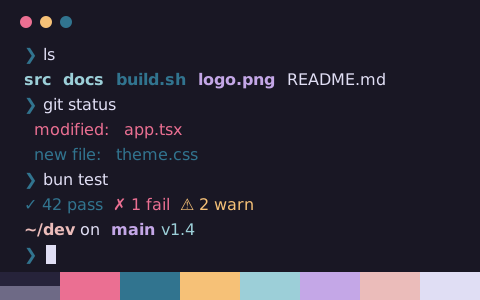
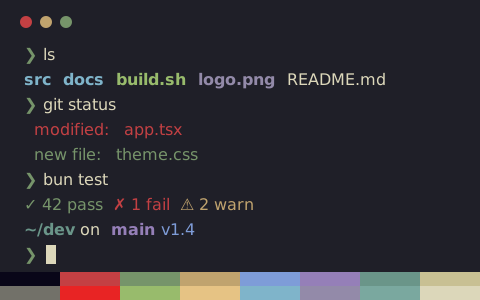
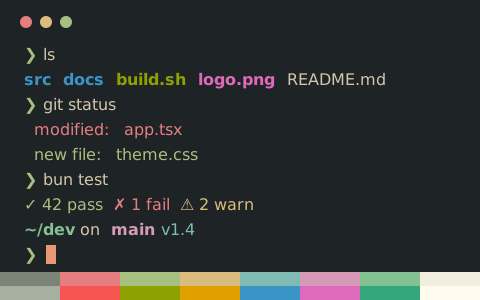
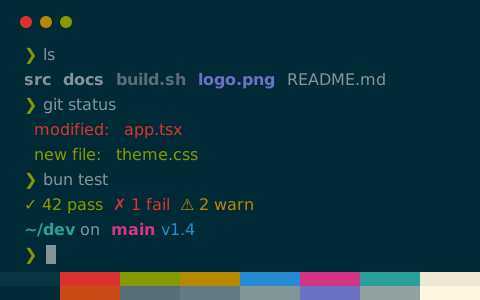
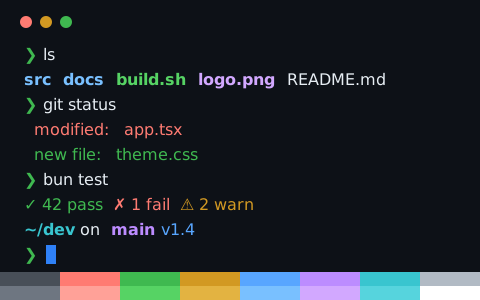
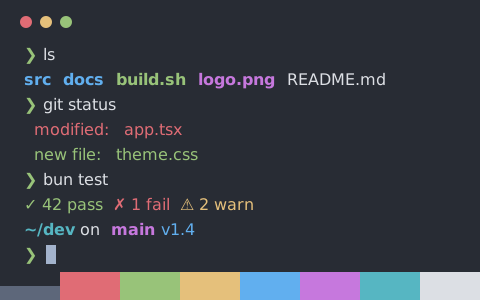
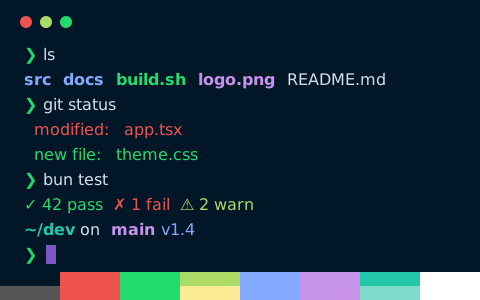
點擊任一套配色查看即時終端機預覽,匯出面板將預設選取 VS Code 格式
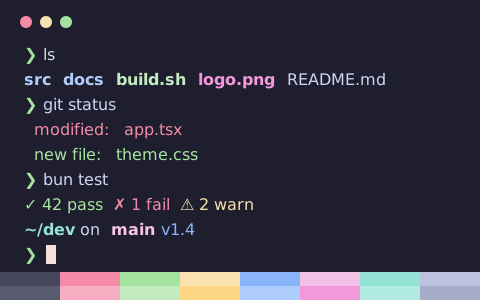
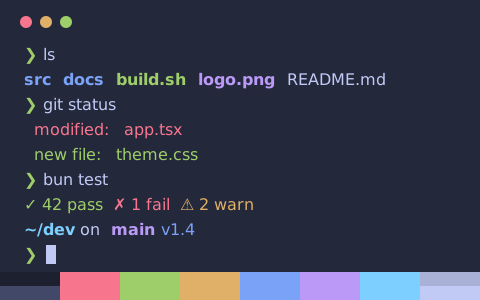
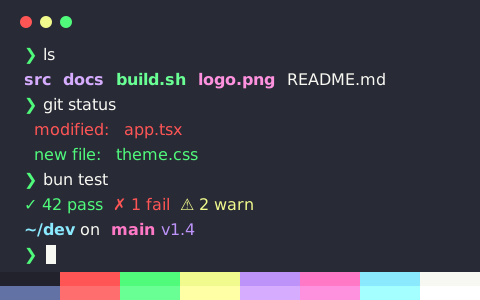
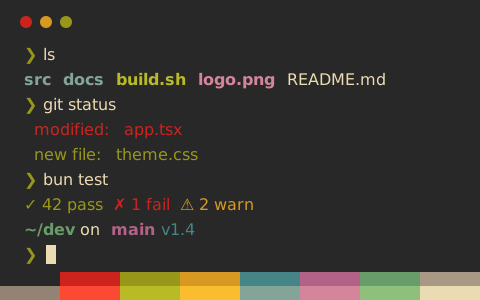
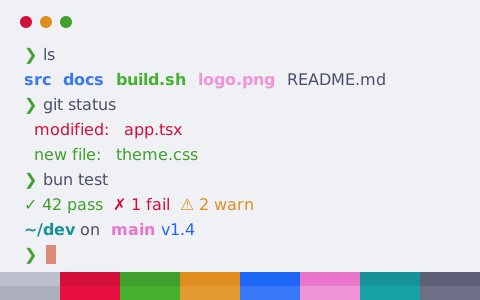
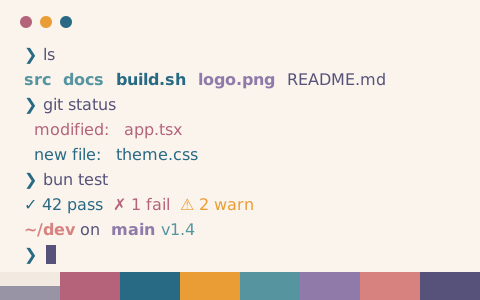
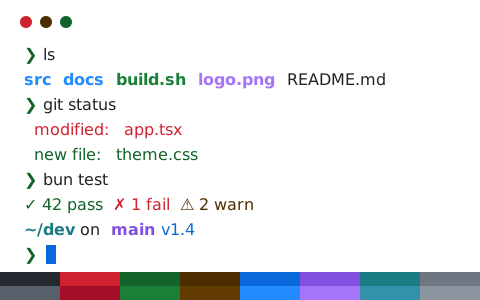
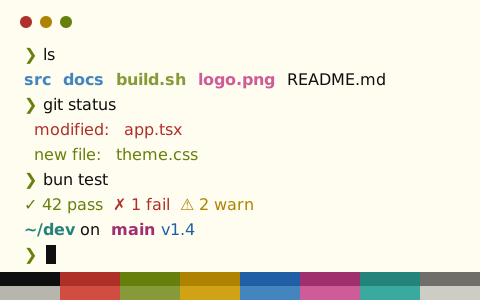
在 VS Code 中安裝配色
- 開啟任一套配色頁面,匯出面板會自動切換到 VS Code 格式,複製或下載設定檔
- 合併進使用者 settings.json(命令選擇區 → 喜好設定:開啟使用者設定 (JSON))
- 儲存後重新載入設定,或重新啟動 VS Code
命令列下載
VS Code 不使用獨立主題資料夾,需將配色片段合併至現有設定檔中。複製設定後依上方步驟貼上即可
設定範例:Catppuccin Mocha(VS Code)
settings.json
// Theme: Catppuccin Mocha (VS Code terminal)
// Preview & customize online: https://tintdex.afengim.com/zh-tw/schemes/catppuccin-mocha?format=vscode

{
  "workbench.colorCustomizations": {
    "terminal.background": "#1e1e2e",
    "terminal.foreground": "#cdd6f4",
    "terminalCursor.background": "#1e1e2e",
    "terminalCursor.foreground": "#f5e0dc",
    "terminal.selectionBackground": "#f5e0dc",
    "terminal.selectionForeground": "#1e1e2e",
    "terminal.ansiBlack": "#45475a",
    "terminal.ansiRed": "#f38ba8",
    "terminal.ansiGreen": "#a6e3a1",
    "terminal.ansiYellow": "#f9e2af",
    "terminal.ansiBlue": "#89b4fa",
    "terminal.ansiMagenta": "#f5c2e7",
    "terminal.ansiCyan": "#94e2d5",
    "terminal.ansiWhite": "#bac2de",
    "terminal.ansiBrightBlack": "#585b70",
    "terminal.ansiBrightRed": "#f7aec2",
    "terminal.ansiBrightGreen": "#c2ecbf",
    "terminal.ansiBrightYellow": "#fcd682",
    "terminal.ansiBrightBlue": "#aeccfc",
    "terminal.ansiBrightMagenta": "#f398da",
    "terminal.ansiBrightCyan": "#b1eae1",
    "terminal.ansiBrightWhite": "#a6adc8"
  }
}
依視覺風格挑選
站內全部 2037 套配色皆可匯出為 VS Code 格式,也可依風格分類篩選: