VS Code ターミナルの配色

VS Code は macOS、Linux、Windows に対応しています。収録されている全 2037 種類の配色を VS Code 形式で書き出し可能で、配色ページを開くと書き出しパネルが自動的に VS Code に切り替わります
- 対応 OS
- macOS、Linux、Windows
人気の VS Code ターミナル配色
任意の配色を開くとライブプレビューが表示され、書き出しパネルは VS Code 形式で開きます
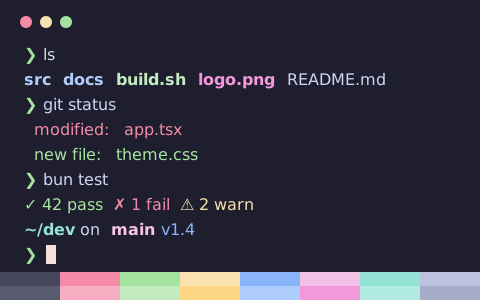
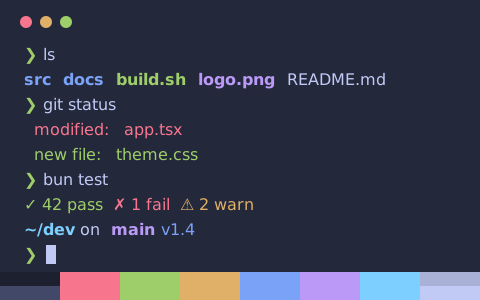
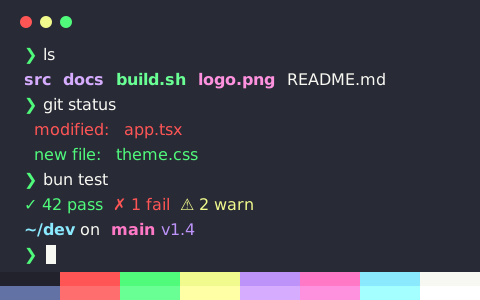
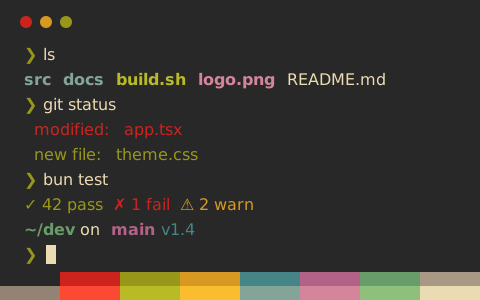
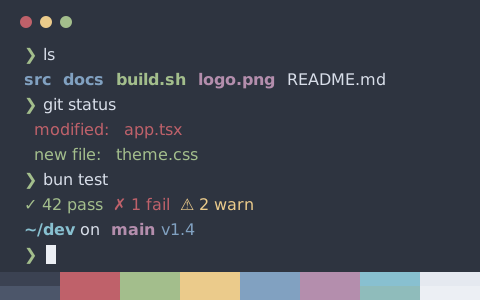
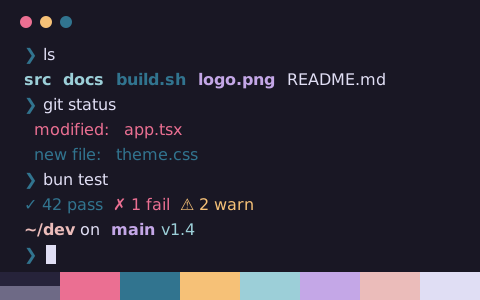
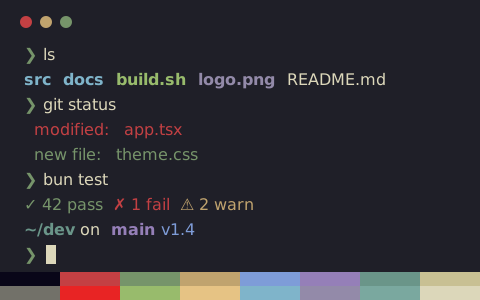
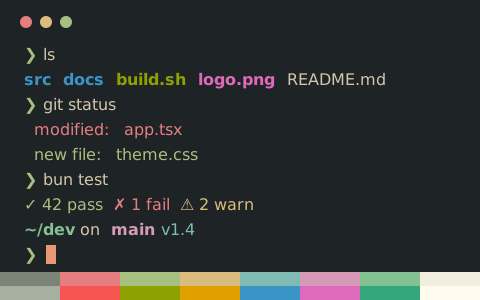
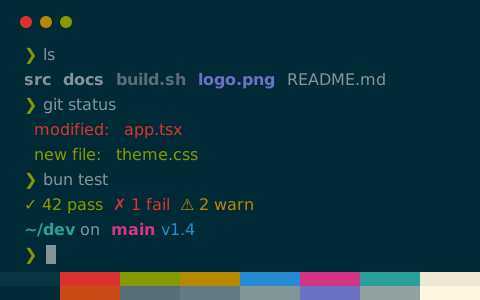
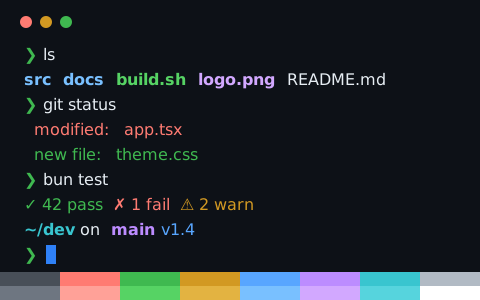
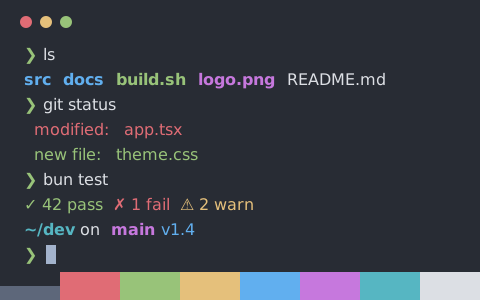
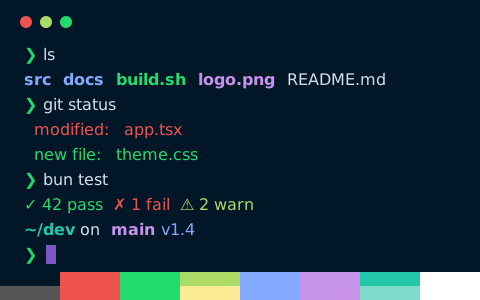
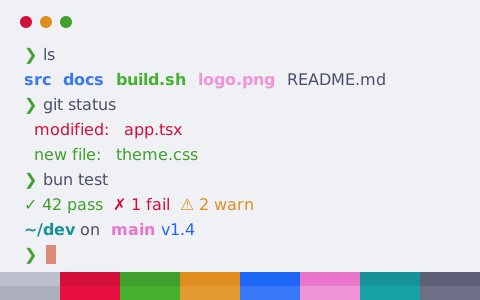
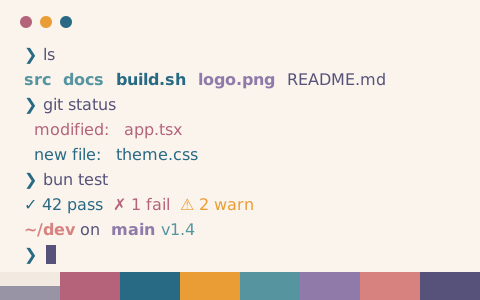
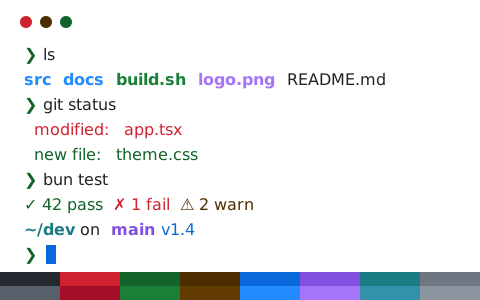
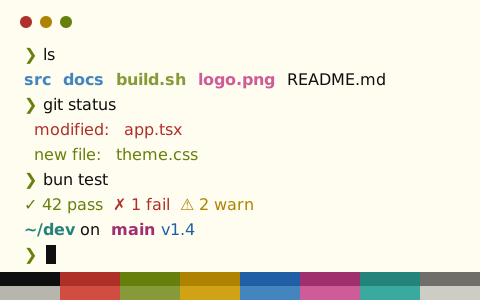
VS Code への配色導入手順
- 任意の配色ページを開くと書き出しパネルが VS Code 形式に切り替わるため、設定をコピーまたはダウンロード
- ユーザーの settings.json にマージ(コマンドパレット → 基本設定: ユーザー設定を開く (JSON))
- 保存後に設定を再読み込みするか、VS Code を再起動
コマンドラインで取得
VS Code には独立したテーマフォルダがないため、既存の設定ファイルへ設定断片をマージします。設定をコピーして上の手順どおり貼り付けてください
設定例:Catppuccin Mocha(VS Code)
settings.json
// Theme: Catppuccin Mocha (VS Code terminal)
// Preview & customize online: https://tintdex.afengim.com/ja/schemes/catppuccin-mocha?format=vscode

{
  "workbench.colorCustomizations": {
    "terminal.background": "#1e1e2e",
    "terminal.foreground": "#cdd6f4",
    "terminalCursor.background": "#1e1e2e",
    "terminalCursor.foreground": "#f5e0dc",
    "terminal.selectionBackground": "#f5e0dc",
    "terminal.selectionForeground": "#1e1e2e",
    "terminal.ansiBlack": "#45475a",
    "terminal.ansiRed": "#f38ba8",
    "terminal.ansiGreen": "#a6e3a1",
    "terminal.ansiYellow": "#f9e2af",
    "terminal.ansiBlue": "#89b4fa",
    "terminal.ansiMagenta": "#f5c2e7",
    "terminal.ansiCyan": "#94e2d5",
    "terminal.ansiWhite": "#bac2de",
    "terminal.ansiBrightBlack": "#585b70",
    "terminal.ansiBrightRed": "#f7aec2",
    "terminal.ansiBrightGreen": "#c2ecbf",
    "terminal.ansiBrightYellow": "#fcd682",
    "terminal.ansiBrightBlue": "#aeccfc",
    "terminal.ansiBrightMagenta": "#f398da",
    "terminal.ansiBrightCyan": "#b1eae1",
    "terminal.ansiBrightWhite": "#a6adc8"
  }
}
スタイル別に探す
全 2037 種類の配色を VS Code 用に書き出せます。スタイルカテゴリからの絞り込みも可能です: