Xresources (xterm, URxvt) themes

Xresources runs on Linux. All 2037 color schemes export directly to Xresources—open any scheme below and the export panel preselects Xresources
- Platforms
- Linux
Popular Xresources (xterm, URxvt) themes
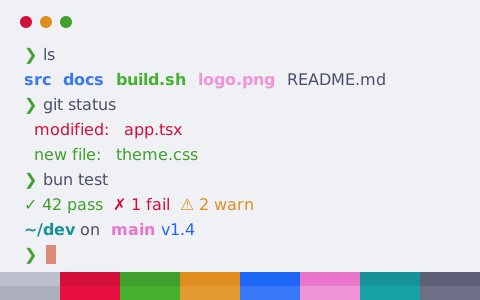
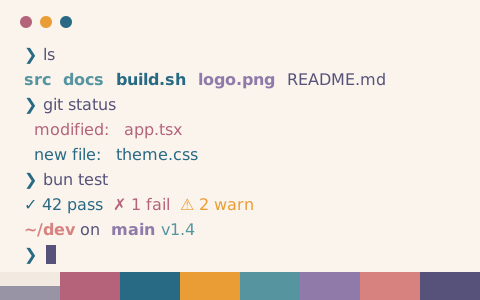
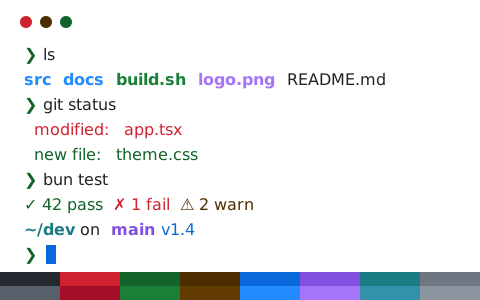
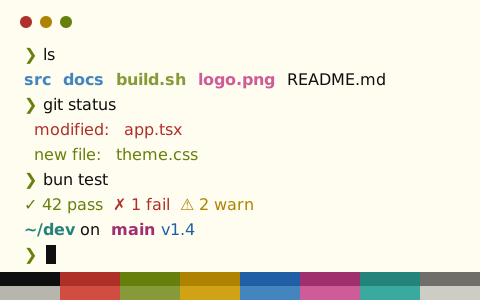
Open any scheme for an interactive terminal preview with the Xresources config tab preselected
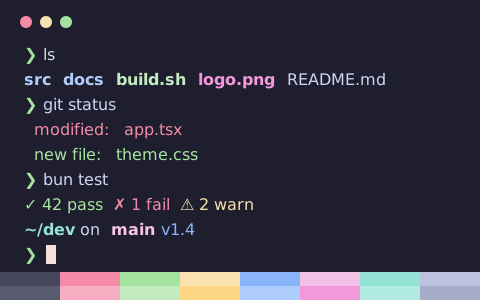
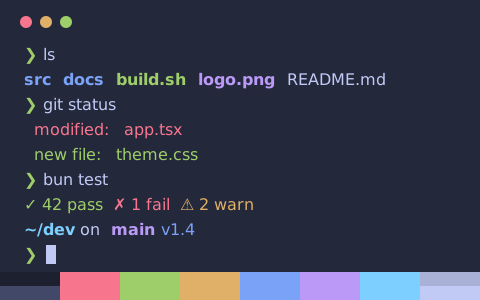
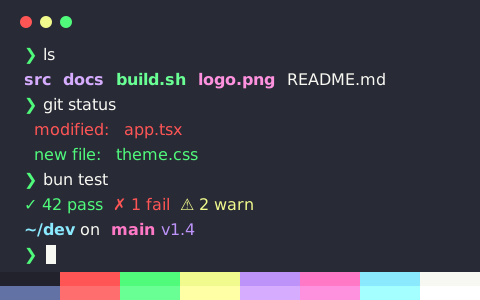
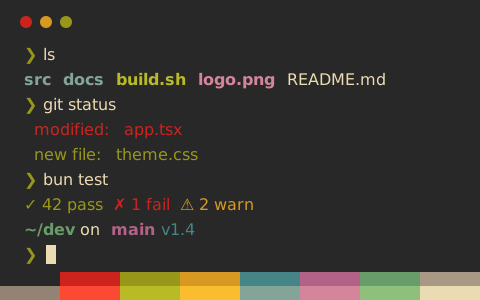
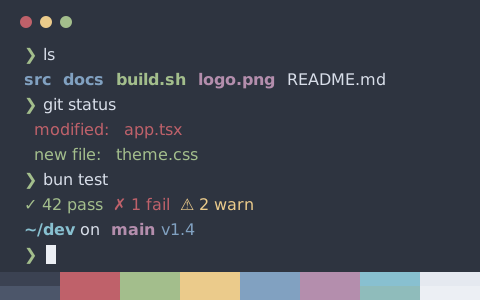
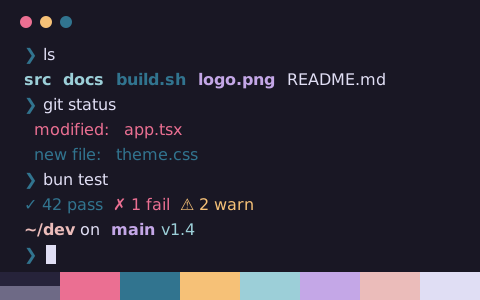
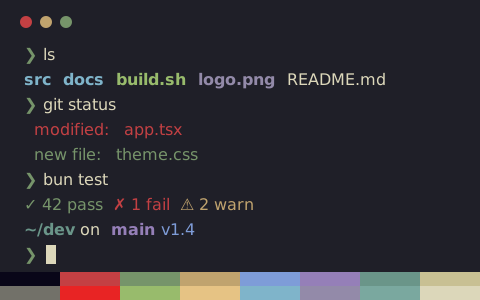
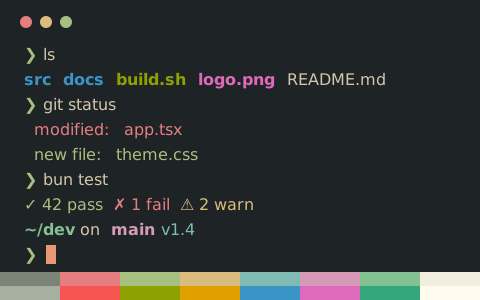
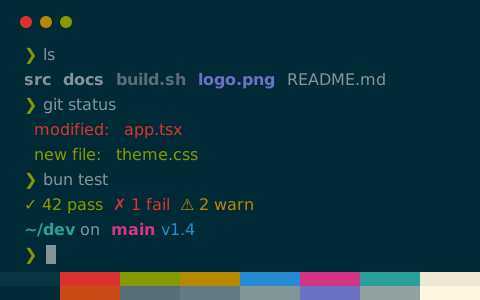
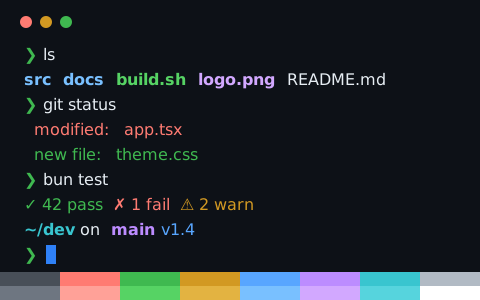
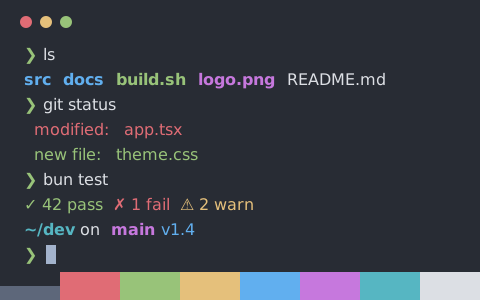
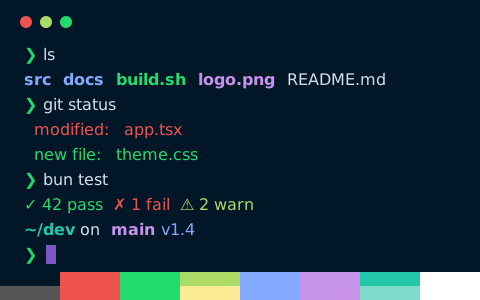
Install a color scheme in Xresources
- Open any scheme page—the export panel preselects Xresources so you can copy or download the config
- Save as ~/.Xresources.d/tintdex, add
#include ".Xresources.d/tintdex"to ~/.Xresources once, then runxrdb -merge ~/.Xresources - Reload your configuration or restart Xresources
Download from the command line
Using Catppuccin Mocha as an example, this command saves the config into Xresources’s theme directory. Replace catppuccin-mocha in the URL with any other scheme slug
mkdir -p ~/.Xresources.d && curl -fsSL "https://tintdex.afengim.com/raw/catppuccin-mocha/xresources" -o ~/.Xresources.d/tintdex && touch ~/.Xresources && { grep -qxF '#include ".Xresources.d/tintdex"' ~/.Xresources || echo '#include ".Xresources.d/tintdex"' >> ~/.Xresources; } && xrdb -merge ~/.XresourcesExample config: Catppuccin Mocha (Xresources)
catppuccin-mocha.Xresources
! Theme: Catppuccin Mocha (Xresources)
! Preview & customize online: https://tintdex.afengim.com/en/schemes/catppuccin-mocha?format=xresources

*.foreground: #cdd6f4
*.background: #1e1e2e
*.cursorColor: #f5e0dc
*.color0: #45475a
*.color1: #f38ba8
*.color2: #a6e3a1
*.color3: #f9e2af
*.color4: #89b4fa
*.color5: #f5c2e7
*.color6: #94e2d5
*.color7: #bac2de
*.color8: #585b70
*.color9: #f7aec2
*.color10: #c2ecbf
*.color11: #fcd682
*.color12: #aeccfc
*.color13: #f398da
*.color14: #b1eae1
*.color15: #a6adc8
Browse by visual style
All 2037 schemes export to Xresources. Filter by visual style: